

Forgot password / Reset password
Reset your password using mobile number or email OTP.
Forgot password / Reset password
If you cannot remember your password, you can create a new one. Reset works for both mobile number and email address.
Reset using mobile number
Step 1
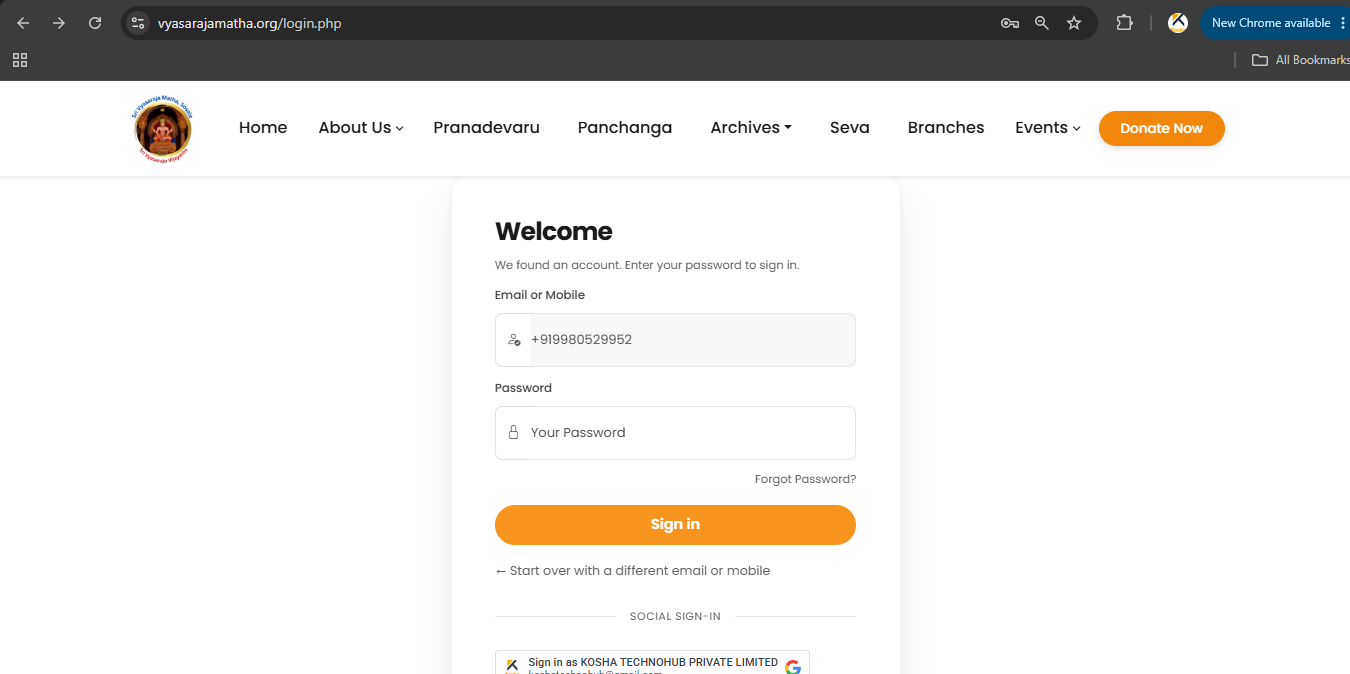
- Open the Login page.
- Click Forgot Password?
Step 2
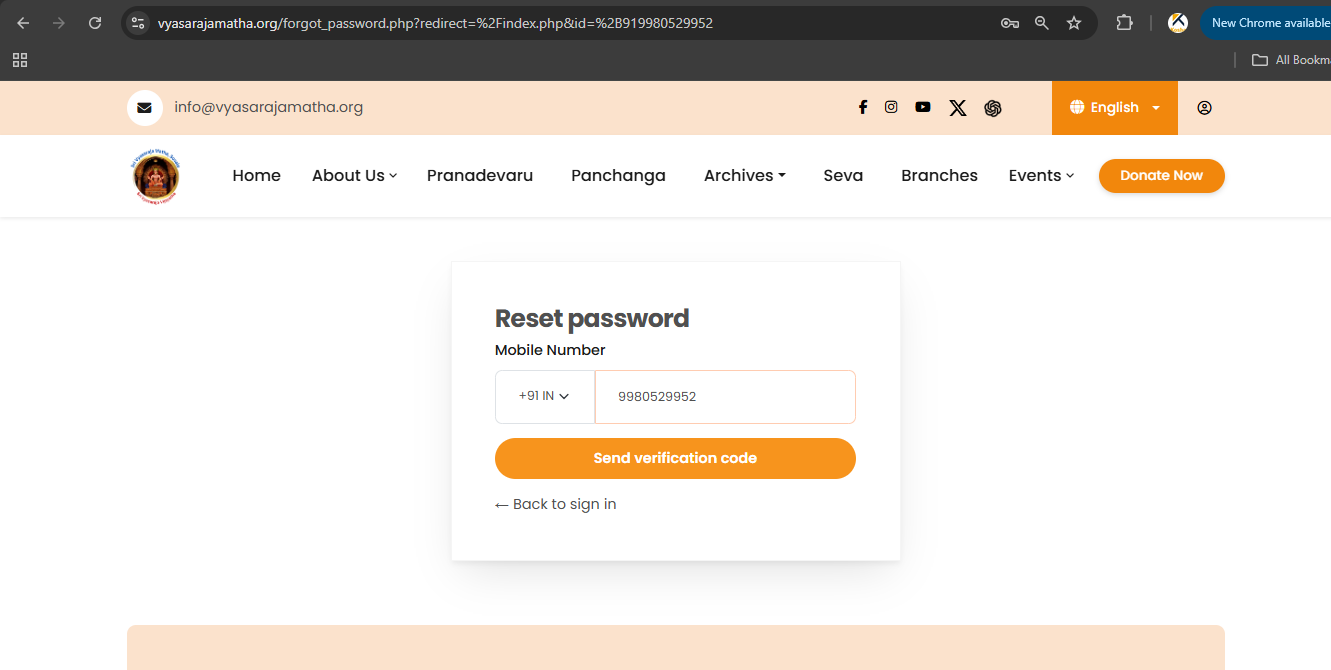
- Enter your registered Indian mobile number.
- Click Send verification code.
Step 3
An SMS verification code is sent to your mobile. Enter the code.
Step 4
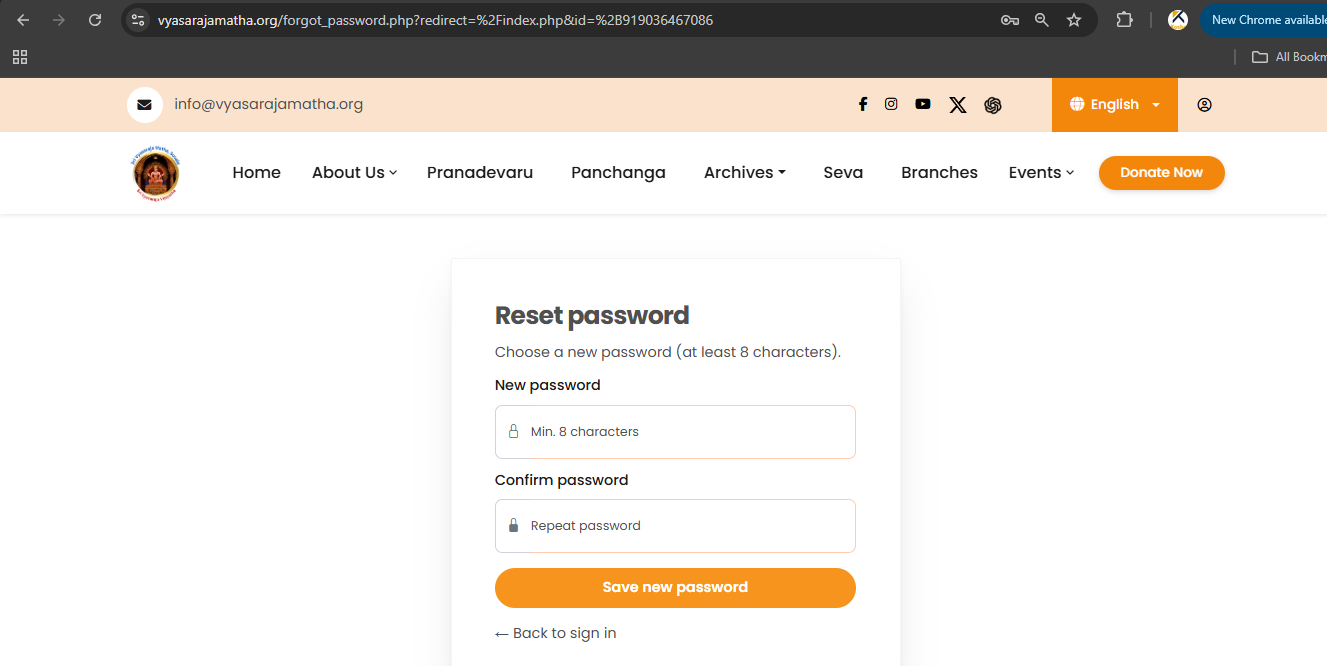
- Enter New password and Confirm password.
- Click Save new password.
Your password is updated. You may now log in with the new password.
Reset using email address
The process is the same: use Forgot Password, enter your registered email, verify the code from your inbox, then save a new password.
Password requirements
- At least 8 characters
- Uppercase and lowercase letters
- Numbers
- At least one special character
- Must match the confirmation password
- Avoid names, dates of birth, or mobile numbers
Important notes
- SMS OTP is available for Indian mobile numbers.
- Users outside India should use email registration / reset.
- Verification codes expire; use Resend Code if needed.
- Google Sign-In is an alternative that does not need a separate password.
Troubleshooting
Did not receive SMS OTP? Check the number, network coverage, then Resend Code.
Did not receive Email OTP? Check Spam/Junk, confirm the email, then request a new code.
Cannot sign in? Confirm mobile/email and password, or use Forgot Password.
Security tips
- Do not share your password or OTPs.
- Sign out on shared computers.
- Keep email and mobile up to date.
Video tutorial: Sri Vyasaraja Matha YouTube
Screenshots